Cloud Management, Home Lab, Networking, NSX

BGP Peering NSX Tier-0 with Ubiquiti UDM Pro

After several months, attempts, and VCF rebuilds to get BGP peering with VMware Cloud Foundation, NSX, and my Ubiquiti Unifi network, it finally happened. I wanted to share my experience. This required a lot of help from internal rock star TAMs in our organization, external blogs, and Ubiquiti support. By no means considered an expert in networking, especially when it comes to routing protocols.

Running UDM Pro, firmware 4.1.13, and Network app version 9.0.114. A recent release of UDM allowed the functionality of BGP (via the GUI). I found others in the community who got BGP working on earlier versions of UDM Pro. Check out Chris Dook’s blog.

Not to get too deep into the VMware stack, I deployed an NSX Edge Cluster consisting of 2 nodes out of SDDC Manager. When viewing the Networking Topology in NSX, the following IPs you can see are the Edge interfaces, which will need to be defined in your configuration file

My order of deployment was off a little as I was troubleshooting. I was in the middle of my Edge Cluster deployment, but if I could do it again, I would make sure my configuration on the Ubiquiti is done.

During the Edge Cluster deployment, you can go into NSX and do a few things, it might be stuck on a failed task if BGP is not working, luckily I was able to Restart Task and complete it. I must say the SDDC Manager appliance was resilient, considering I had to reboot my UDM Pro several times in a span of 2 days.

Configured 2 BGP Neighbors, one for each network containing their respective interface subnets, you can see I have one neighbor for the .3 and .4 subnets.

I saved the following in a Notepad file and gave it a name. It was <name>.conf, initially I was using the default frr.conf, but the UDM appliance already has that file, so it was suggested by support to not use the same name.

!
router bgp 65000
bgp router-id 192.168.100.254
!
neighbor 192.168.3.2 remote-as 65001
neighbor 192.168.3.3 remote-as 65001
neighbor 192.168.4.2 remote-as 65001
neighbor 192.168.4.3 remote-as 65001
!
address-family ipv4 unicast
  redistribute connected
  redistribute static
  redistribute kernel
!
  neighbor 192.168.3.2 activate
  neighbor 192.168.3.3 activate
  neighbor 192.168.4.2 activate
  neighbor 192.168.4.3 activate
!

  neighbor 192.168.3.2 soft-reconfiguration inbound
  neighbor 192.168.3.3 soft-reconfiguration inbound
  neighbor 192.168.4.2 soft-reconfiguration inbound
  neighbor 192.168.4.3 soft-reconfiguration inbound
!
exit-address-family
!
!

From the Unifi Network UI, go to Settings >> Routing >> BGP and you can create the entry in there, upload the configuration. Once that is completed, connect to the UDM CLI.

The following commands will need to be added and saved to the running config.

root@UDMPro:~# vtysh

Hello, this is FRRouting (version 8.1).
Copyright 1996-2005 Kunihiro Ishiguro, et al.

frr#configure terminal
frr(config)# ip prefix-list ALL-ROUTES seq 5 permit 0.0.0.0/0 le 32
frr(config)# route-map EXPORT-ALL permit 10
frr(config-route-map)# match ip address prefix-list ALL-ROUTES
frr(config-route-map)# exit
frr(config)# router bgp 65000
frr(config-router)# address-family ipv4 unicast
frr(config-router-af)# neighbor 192.168.3.2 route-map EXPORT-ALL out
frr(config-router-af)# neighbor 192.168.3.3 route-map EXPORT-ALL out
frr(config-router-af)# neighbor 192.168.4.3 route-map EXPORT-ALL out
frr(config-router-af)# neighbor 192.168.4.2 route-map EXPORT-ALL out
frr(config-router-af)# exit
frr# write memory

For the instructions above, please ensure to type exit until you’re at the frr# prompt and then ‘write memory’

So, what happens next? Let’s verify our routes are being advertised and learned from NSX. There are other ways to validate, however, this is what I was chasing down, and it ultimately resolved my Edge Cluster deployment.

From one of the NSX edges (in admin mode) you can access the Tier0 and run ‘get route bgp’ and we can see which paths are connected via bgp

This is all in my personal lab, please do not rely on these to deploy to a production environment, use caution, and consult with a partner or any professional services.

Home Lab, NSX

Enable SSH Service on NSX Controllers Using API w/ Postman

In my home lab, I try to find little tasks and find a way I can repeat these tasks quicker, easier, and perhaps even more securely. Everything I share can be performed in many different ways, my importance is finding a new way every time.

As a security measure, I chose to leave SSH disabled when deploying my NSX Controllers and now I need to access my managers so that I can perform some commands. Rather than typing in a long complicated password in a VMware console, I wanted to execute this via API using Postman. (This also allows me to dig in and learn more about Postman)

If you browse out to the VMware By Broadcom Developer site, API reference documentation is available, simply bring up the site below and you can do a search for ‘SSH’ and you will find the SSH-related API calls.

NSX-T Data Center REST API – VMware API Explorer

The following call will get the status of SSH on an individual NSX manager.

GET https://<nsx-mgr>/api/v1/node/services/ssh/status

If you want to review the properties of the SSH configuration, run the following

GET https://<nsx-mgr>/api/v1/node/services/ssh

For the final step, we want to finally enable SSH on the controller by running

POST https://<nsx-mgr>/api/v1/node/services/ssh?action=start

and we are in

Reference the API Documentation listed at the beginning of the article, the commands are relatively the same just have parameters for ‘stop’, ‘start’, or ‘restart’

Home Lab, NSX

Fix NSX 4.1.0 ‘Install Skipped’ During Host Preparation in a vLCM Cluster

With VMware vSphere 8.x out and vSphere Lifecycle manager making the shift from individual baselines to cluster images, there are some additional encounters you may have when integrating with our solutions from VMware or even other vendors.

I encountered an error recently in NSX 4.1.0.2.0.21761693 during host preperation I received the following error.

When clicking on the error for details and steps, you see

Go to the VMware Cluster >> Updates >> Image

You can perform an Image Compliance check manually or you will find there is my problematic host not showing compliant because it is missing NSX vibs

Click ‘Remediate All’, review your remediation settings and click ‘Remediate’. Once Remediation completes, I decided to reboot the host and once it came back up, inside NSX Manager I located the node and to the far right clicked on ‘View Details’ and click ‘Resolve’ to the prompt.

Monitor the installation status

This completed successfully, as the host now shows as prepared and ‘Success’

Home Lab, NSX

Joining Individual VMware NSX Managers to form a Cluster via CLI

I’ve deployed 3 NSX Managers individually from the NSX OVA onto a single vCenter. By having 3 individual Managers, I have the option to create multiple clusters from each one (probably excessive and incorrect in my case). Instead my goal is to join all 3 individual managers to form a 3-node cluster and then assign a VIP.

For this process, I will be following VMware documentation that is provided here: Form an NSX Manager Cluster Using the CLI

My 3 NSX managers I will be referencing and joining are nsxcon1, nsxcon2 & nsxcon3

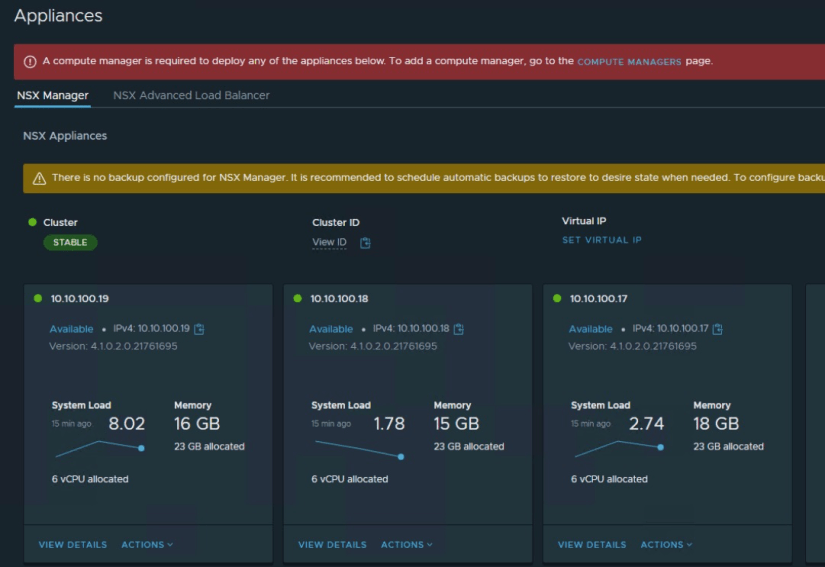
Here is an example of nsxcon1 UI reviewing the ‘Appliances’ section, you can see there is only a single appliance and an additional one cannot be added until a ‘Compute Manager’ (such as a vCenter) can be added.

I did verify CLI connectivity to each of the appliances by running

get cluster status

This command will return cluster health for the NSX Manager and any appliances that are part of the cluster, for this example, it’s only a single appliance

From the first NSX controller you will want to obtain the thumbprint by

get certificate api thumbprint

That will provide you the thumbprint of the targeted appliance

Moving onto the other node (nsxcon2) which we want to join to nsxcon1, we will use the following command

mgr-new> join <Manager-IP> cluster-id <cluster-id> username <Manager-username> password <Manager-password> thumbprint <Manager-thumbprint>

Here is an example of what it looks like when populated in that command and ran from the node we want to join to our primary one.

*Please ensure you have taken appropriate backups as this will take this node and try and join it to another cluster, being this should be a vanilla install, should not be too much to have to re-deploy.

After a couple of minutes we do receive the following prompt

We can then go back to nsxcon1 and verify with ‘ get cluster status’ and see that the cluster status is ‘DEGRADED’ however this is normal while the node is completing it’s process with joining and updating the embedded database.

We can take our ‘join’ command earlier we used on nsxcon2 and then run it on nsxcon3 again.

After running it, going back to nsxcon1 and checking cluster status..we now have 3 appearing

After a few minutes, our GUI has been fully populated with all NSX Managers reporting as stable

As a cherry on top, we will click on ‘Set Virtual IP’ and assign a dedicated IP address which also has it’s down DNS record.

There is our new virtual IP which has been assigned to one of the nodes

NSX

Upgrading VMware NSX-T to NSX 4.0.1

In preparation for vSphere 8 upgrades, I’m in the process of upgrading many of the solutions in the homelab before upgrading to the big 8.

I’m currently running NSX-T 3.2.1 with NSX Manager appliances. I have NSX deployed out to a cluster with a couple of Edge appliances in a cluster configuration.

For those that might’ve missed the word, it was announced early-2022 that NSX-T 3.x would be no longer and that the naming would be shifting to NSX with versions 4.x going forward. You can read more about this here.

The first step was to ensure I have a recent ‘Successful’ backup from within NSX-T manager itself.

When you go out to Customer Connect Downloads, you will want to download the NSX 4.0.1.1 *.mub Upgrade file.

Once the file is downloaded, I chose to upload it from my local system where I was using my browser to access the NSX interface.

Once the file uploads, the next step will be to click ‘Prepare for Upgrade’

The following process will take some time, you might even be prompted with a session timeout, In my instance I came up with the error “Repository synchronization operation was interrupted. Please click on resolve to retry. Repository synchronization failed. a ‘Retry’ ran and it completed the check successfully.

Once this process completed, it took me to step 2, the manager console will reload.

Click on the drop-down and select ‘All Pre-Checks’

After reviewing the results of the Upgrade, I reviewed the alarms and felt I wanted to move forward with the upgrade. The Edges are alarming due to Memory Consumption and the Manager alarms were relating to the NSX ‘audit’ account.

I selected to run the upgrade in ‘Serial’ and selected ‘After each group completes’ for Pause upgrade condition. click ‘Start’

The Edge upgrades completed successfully, I will click Next for the Hosts. There is also an option to ‘Run Post Checks’

The post checks ran fine and the next step is start the Hosts for upgrades.

The hosts upgrade completed successfully, I even ran the post upgrade check and it succeeded. The only gotcha for my cluster was I had to manually move some VMs onto other hosts and power some VMs down to conserve on resources, so once that was done, hosts entered maintenance mode.

The final step which was to upgrade the NSX Managers, click ‘Start’

So the upgrade failed immediately as the ‘audit’ account came back to bite me, there was a strange behaviour where when I update the password, the account was still showing a Password Expired status, I ‘Deactivated’ and ‘Activated’ the account and it showed Active. Once that was completed, the message also stated to take action on the ‘Alarm’ in NSX, so I went back and Acknowledged and Resolved alarms and did not leave any in Open status.

The upgrade will allow you to continue once you navigate back to System>>Upgrade. Go back to Step 1 and run the “Pre Check” for NSX Manager Only, before proceeding to the final upgrade step.

The upgrade completed successfully. You will notice the top left-corner banner will now only read ‘NSX’.